Two Cursor profiles on one Mac
I wanted two Cursor instances on the same Mac — one for work, one for personal — with fully separate accounts, chat history, settings, and extensions. The naive approach is to duplicate Cursor.app in Finder and rename it. That works until the next update: auto-updates only reach the original, and the copy silently drifts onto older versions. The right model is to separate the two things macOS bundles together: the .app wrapper and the actual binary.
Bundle vs. binary
A macOS app bundle is just a directory with an Info.plist, an icon, and a launcher in Contents/MacOS/. Cursor stores the entire user profile (account, settings, chat history, extensions) in whatever directory you pass via --user-data-dir. So you can have any number of lightweight bundles that all exec the same Cursor binary with different flags, and each one gets an isolated profile. Auto-updates touch the original binary, so every wrapper bundle updates for free.
The recipe
The whole bundle is three files in the right directory layout:
CursorWork.app/
└── Contents/
    ├── Info.plist
    ├── MacOS/
    │   └── CursorWork        # bash launcher, must be executable
    └── Resources/
        └── cursor.icns       # icon
Contents/MacOS/CursorWork is a bash script that execs the real Cursor binary with profile-specific flags:
#!/bin/bash
exec "/Applications/Cursor.app/Contents/MacOS/Cursor" \
  --user-data-dir="$HOME/.cursor_work" \
  --extensions-dir="$HOME/.cursor_work/extensions" \
  "$@"
Contents/Info.plist describes the bundle to macOS:
<?xml version="1.0" encoding="UTF-8"?>
<!DOCTYPE plist PUBLIC "-//Apple//DTD PLIST 1.0//EN" "http://www.apple.com/DTDs/PropertyList-1.0.dtd">
<plist version="1.0">
<dict>
  <key>CFBundleExecutable</key>      <string>CursorWork</string>
  <key>CFBundleIdentifier</key>      <string>com.cursor.work</string>
  <key>CFBundleDisplayName</key>     <string>Cursor Work</string>
  <key>CFBundleIconFile</key>        <string>cursor</string>
  <key>CFBundlePackageType</key>     <string>APPL</string>
  <key>NSHighResolutionCapable</key> <true/>
</dict>
</plist>
The two fields that matter are CFBundleExecutable (must match the script filename in Contents/MacOS/) and CFBundleIdentifier (must be unique per bundle — this is what makes macOS treat CursorWork.app and CursorPersonal.app as two distinct applications in the Dock, LaunchServices, and the "default app" picker). CFBundleIconFile is the icon filename inside Contents/Resources/ without the .icns extension. Put an .icns at that path, chmod +x Contents/MacOS/CursorWork, and you have a new app in the Dock that's really Cursor running against a different profile. Add alias cursor_work='open -a /Applications/CursorWork.app' to .zshrc and you can launch it from the terminal too.
If you already had a naive duplicated Cursor.app and want to keep its chat history, move its profile first:
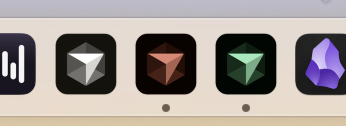
cp -r "$HOME/Library/Application Support/Cursor/User" "$HOME/.cursor_work/"Icons are cosmetic but genuinely helpful when both apps are running — mine are green (work) and red-brown (personal). I coloured them with ImageMagick: iconutil -c iconset to extract the PNGs → magick -modulate for a hue shift → iconutil -c icns to repack.
Gotchas worth knowing
- Don't run two instances against the same
user-data-dir. Cursor writes a lock file; the second instance either refuses to start or hangs. Fully quit one before opening the other. - Cold start on a new profile is slow. Cursor has to page in the SQLite chat DB (
state.vscdb) from disk — mine grew to 6+ GB in the active profile, which is fine, just slow the first time. Subsequent launches hit the OS page cache and are fast. - Check you're not on Rosetta. Cursor ships separate ARM64 and Universal builds; if you accidentally installed Universal on Apple Silicon, you're running through Rosetta without realising. Activity Monitor → "Kind" column tells you. Switching to the ARM64 build gave me roughly 500 MB of RAM back and noticeably snappier input.
The general principle is broader than Cursor: any Electron-ish app that accepts --user-data-dir (VS Code, Obsidian, Slack) supports the same trick. One binary, any number of isolated profiles, auto-updates intact.